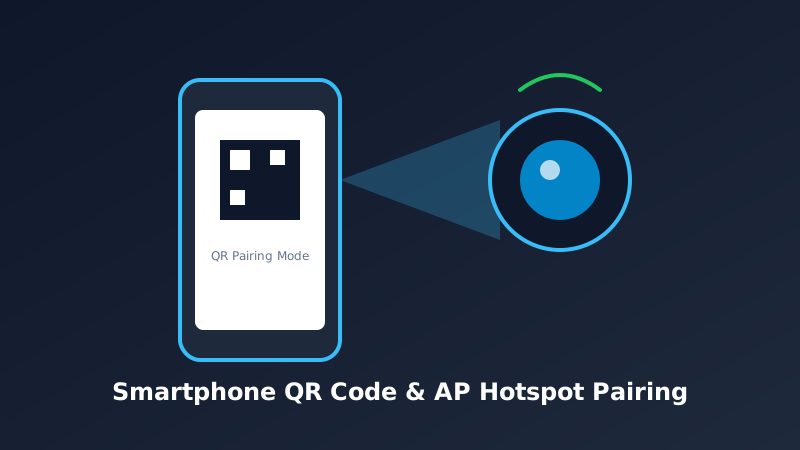
Connecting a wireless WiFi HD camera to your mobile phone allows you to monitor live video streams, receive instant motion alerts, and review recorded footage from anywhere in the world. While modern IP cameras are designed for quick plug-and-play installation, minor network mismatches—such as connecting to a 5GHz band instead of 2.4GHz—frequently cause setup failures.
This comprehensive guide details the three most reliable methods to pair your WiFi security camera with any iOS or Android phone, regardless of the camera brand.
1. Prerequisites Before Starting
Before launching your camera's companion application (such as Tuya, Smart Life, V380, Yi Home, Reolink, or Eufy), verify the following essential requirements:
- 2.4GHz WiFi Network: 90% of budget and mid-range wireless cameras only support the 2.4GHz WiFi frequency. Make sure your smartphone is connected to the 2.4GHz SSID on your dual-band router during initial pairing.
- Proximity to Router: Place the camera within 3 to 6 feet of your wireless router during the initial handshake. Once paired, you can relocate it to its final mounting position.
- App Permissions: Ensure your phone grants Location (required for WiFi discovery on Android/iOS) and Local Network permissions to the camera app.
- Adequate Power: Connect the camera using its supplied 5V/12V DC power adapter and wait for the startup chime or blinking LED status light.
2. Method 1: QR Code Scanner Setup (Standard)
The QR code method is the industry standard for pairing smart home cameras. Here is the step-by-step workflow:
- Install the App: Download the designated companion app from Google Play Store or Apple App Store and create a free user account.
- Power On & Reset: Plug in the camera. If it has been previously used, press and hold the reset pin for 5-10 seconds until you hear "Waiting to connect" or "Reset successful".
- Add Device: In the app, tap the "+" or "Add Device" button in the upper right corner and select Security Camera / Smart Camera (Wi-Fi).
- Enter WiFi Details: Select your 2.4GHz WiFi network name and enter the correct WiFi password.
- Scan the Phone Screen: The app will generate a high-contrast QR code on your phone display. Hold your phone screen 6 to 8 inches in front of the camera lens.
- Confirm Prompt: Once the camera scans the QR code, it will emit a beep or verbal confirmation ("QR Code scanned successfully"). Tap "I Heard a Prompt" in the app.
- Finalize: Wait 15-30 seconds for cloud registration to complete. Name your camera (e.g., "Front Door" or "Living Room").
3. Method 2: AP Hotspot Connection (Manual Mode)
If your camera lens cannot focus on your phone display, the Access Point (AP) mode bypasses visual scanning entirely:
- Put the camera into AP Mode (usually indicated by a slow blinking LED or double-clicking the reset button).
- Open your phone's native Settings → Wi-Fi.
- Look for an open or factory-protected WiFi network broadcast by the camera (often named
CAM_XXXXXX,IPC_XXXXXX, orMV_XXXXXX). - Connect your phone directly to the camera's WiFi network.
- Return to the camera app; it will automatically recognize the direct connection and prompt you to select your home WiFi network so the camera can join the internet.
4. Method 3: Acoustic / Sound Wave Pairing
Some mini HD cameras and indoor baby monitors use ultrasonic audio waves to transmit WiFi credentials directly into the camera's microphone:
- Turn up your smartphone's media volume to at least 80%.
- Hold your phone within 2 inches of the camera's microphone.
- Tap "Send Sound Wave" in the app. The phone will emit a series of high-pitched chirps encoding your SSID and password.
5. Common Setup Mistakes & Comparison
| Setup Issue | Primary Cause | Solution |
|---|---|---|
| "Password Error" Prompt | Special characters or wrong capitalization | Re-enter password carefully; avoid complex symbols in initial setup. |
| Camera Fails to Scan QR | Screen glare or wrong distance | Turn phone brightness to 100% and keep steady at 7 inches away. |
| Connection Timed Out at 99% | Router firewall blocking UDP/P2P ports | Enable UPnP on your router or disable aggressive firewall filters. |
| No WiFi Found in App | Phone connected to 5GHz band | Switch phone Wi-Fi settings to 2.4GHz network only. |